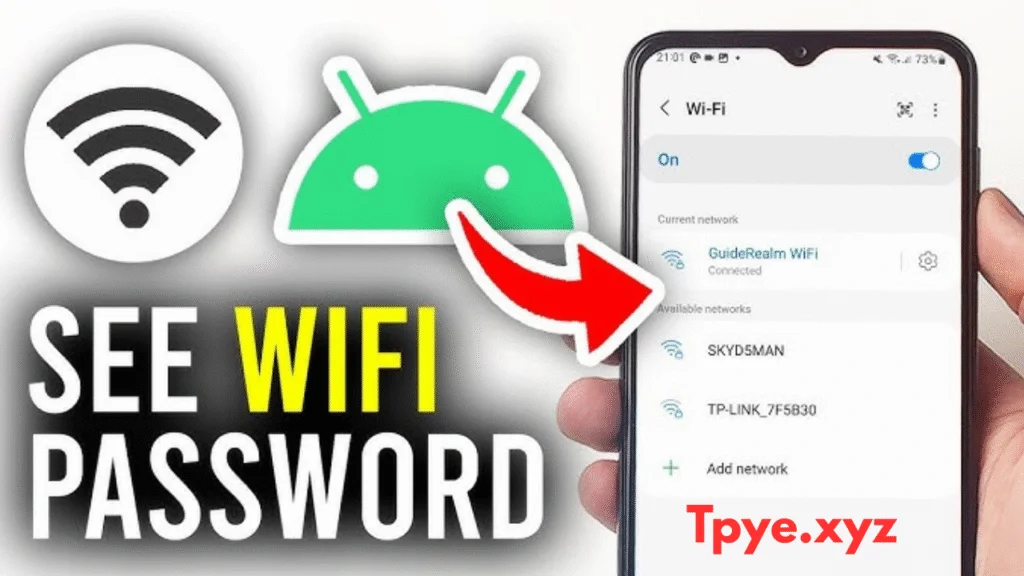
 by
by How to View Saved WiFi Passwords on Android Devices: The Ultimate Comprehensive Guide
Published Date: 13 March 2026
Category: Technology Tips
Wireless networks have become the lifeline of modern digital life. From remote work, streaming HD entertainment, online gaming, to smart home devices, a stable WiFi connection is essential. Often, we connect to a WiFi network once and completely forget the password. This can become frustrating when we need the password later for other devices or guests.
Fortunately, Android devices provide multiple ways to view saved WiFi passwords securely, without compromising device safety. In this detailed guide, we will cover every method, from simple built-in features to advanced techniques for power users.
Why You Might Need to Check a Saved WiFi Password
There are many practical scenarios where viewing a saved WiFi password is useful:
- Connecting New Devices: Linking smart TVs, tablets, or gaming consoles to your home network.
- Hosting Guests: Sharing your network with friends or family.
- Upgrading Your Phone: Transferring credentials to a new smartphone.
- Recovering Forgotten Details: If your WiFi password is complex and you forgot it.
- Troubleshooting Network Issues: Ensuring the saved password matches the router settings.
Regardless of your situation, Android offers multiple easy and reliable ways to retrieve saved network credentials.
1. Using Native QR Code Sharing (No Root Required)
Android 10 and newer versions allow users to reveal WiFi passwords via a QR code, making it simple for everyone.
Steps:
- Open Settings → Network & Internet → Wi-Fi.
- Tap the network you are connected to or select the gear icon.
- Click Share (QR code icon).
- Authenticate using fingerprint, face unlock, or PIN.
- The QR code appears, with the password often displayed below.
Pro Tip:
If the password is not visible, take a screenshot and scan it using Google Lens. It will reveal the text password immediately.
2. Accessing Google Password Manager
If your Android is linked to a Google account, WiFi passwords may be saved and synced to the cloud.
Steps:
- Visit passwords.google.com on PC or smartphone.
- Log in to your Google account.
- Search for your WiFi network (SSID).
- Verify your identity using 2FA or device authentication.
- Click the eye icon to reveal the saved password.
✅ Works even if your phone is lost, as long as you can access your Google account.
3. Viewing System Files (Rooted Devices Only)
For advanced users, rooting allows access to secure system files containing WiFi credentials.
Steps:
- Install a root file manager like Solid Explorer or Root Explorer.
- Grant Superuser permissions.
- Navigate to
/data/misc/wifi/. - Open
WifiConfigStore.xmlorwpa_supplicant.conf. - Look for entries:
ssid="YourNetworkName"
psk="YourPassword"
⚠️ Caution: Rooting may void warranties and expose the device to security risks. Only attempt if confident.
4. Using ADB Commands (Optional Root)
ADB (Android Debug Bridge) allows managing your device from a PC. You can extract saved WiFi passwords.
Requirements:
- Desktop PC with ADB installed
- USB Debugging enabled
- Compatible USB cable
Steps:
- Connect phone to PC and enable file transfer.
- Open Command Prompt / Terminal.
- Type:
adb devices
adb shell
su
cat /data/misc/wifi/WifiConfigStore.xml
- Find SSID and preSharedKey entries for network passwords.
⚠️ Non-rooted devices may return Permission Denied.
5. Accessing Router Dashboard
If your device is connected but password is unknown, check the router itself:
- Open a browser → enter router IP (e.g.,
192.168.0.1). - Log in with admin credentials (often on router sticker).
- Go to Wireless Settings or Network Security.
- Click Show Password to reveal the network key.
✅ This method works without rooting or apps.
6. Trusted Third-Party Apps (Root Usually Required)
Some apps can display saved network passwords but often need root access:
- WiFi Password Viewer
- WiFi Key Recovery
- Router Setup Page App
⚠️ Only download from trusted sources, review permissions carefully.
Quick Comparison of Methods
| Method | Root Required | Difficulty | Reliability | Best For |
|---|---|---|---|---|
| QR Code Sharing | No | Very Easy | High | Everyday users |
| Google Password Manager | No | Easy | High | Synced users |
| Root File Explorer | Yes | Advanced | Very High | Power users |
| ADB Commands | Sometimes | Advanced | Varies | PC-savvy users |
| Router Dashboard | No | Medium | High | Anyone |
| Third-Party Apps | Mostly | Medium | Varies | Root users |
FAQs About Viewing WiFi Passwords
Q1: Is root necessary?
No. QR code sharing and Google Password Manager work without root.
Q2: Are third-party apps safe?
Only use trusted apps. Avoid apps requesting unnecessary permissions.
Q3: Can old network passwords be recovered?
Yes, if not deleted manually and no factory reset occurred.
Q4: Do these methods work for public hotspots?
Yes, if the device saved the WPA2/WPA3 password. Web-based login networks won’t show keys.
Conclusion
Retrieving saved WiFi passwords on Android is now easy and secure.
- For everyday users, QR code sharing and Google Password Manager are quick and safe.
- Advanced users with rooted devices can use file explorers or ADB commands.
- Router dashboards remain a reliable alternative for all scenarios.
By mastering these methods, you gain full control over your network access, ensuring smooth connectivity for all devices and guests.